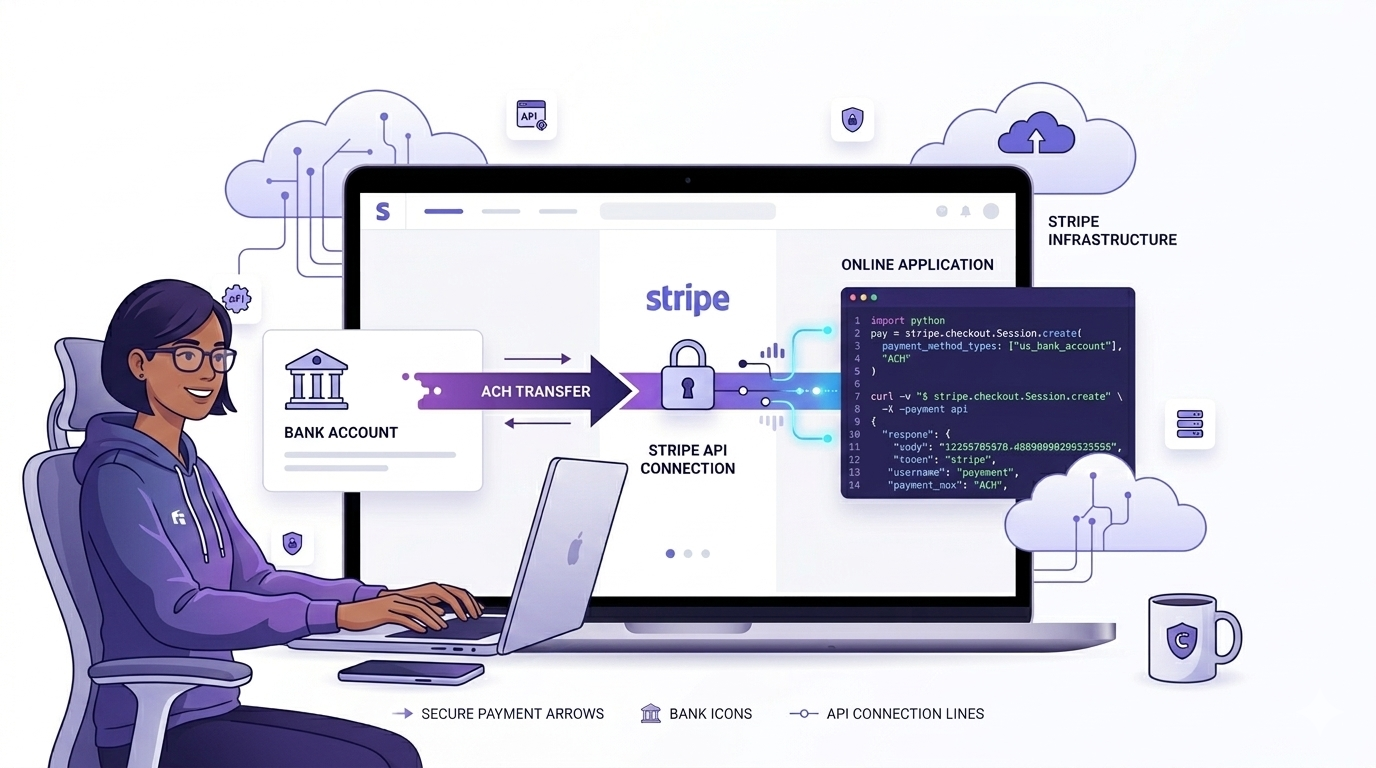
Every time a Stripe payment comes in, someone on your team is probably doing something they shouldn't have to: copying an invoice number, updating a spreadsheet, or manually creating a transaction in QuickBooks. It's tedious, it's error-prone, and it scales terribly.
The fix isn't a new tool - it's connecting the tools you already have. Stripe and QuickBooks Online both have well-documented APIs. With a middleware layer in between, every payment Stripe processes can automatically become a properly categorized invoice or transaction in QBO, with zero manual input.
The Manual Process and What It Actually Costs
A typical order-to-accounting flow without automation looks like this: an order comes in through your platform, payment processes in Stripe, a team member exports a CSV from Stripe at end of day, another person reconciles it against orders, and someone else manually creates invoices or journal entries in QuickBooks. If anything is off - a refund, a partial payment, a currency mismatch - it gets flagged for review and the cycle extends.
| What | Manual | Automated |
|---|---|---|
| Data entry per transaction | 2-4 minutes manually | Automatic |
| Error rate | 1-3% with manual entry | <0.1% |
| Reconciliation lag | Daily or weekly batches | Real-time |
| Refund handling | Separate manual step | Automated credit memo |
| Scales with volume? | No - linear effort increase | Yes |
How the QuickBooks Online API Works
QBO's API is REST-based and uses OAuth 2.0 for authentication. The two objects you'll work with most in an order-to-accounting flow are:
- Invoice - a billable document you send to a customer. Can be marked as paid when the payment comes in.
- Payment - records that a customer paid an invoice, full or partial.
- Item - the product or service being sold. Each invoice line needs an Item reference.
- Customer - QBO's representation of your end customer. Every invoice needs a Customer attached.
Note: QBO access tokens expire after 1 hour. Refresh tokens last 100 days. Build token refresh logic from day one - it's easy to forget until your sync silently breaks at 1am.
Authentication Setup in Laravel
// config/services.php
'quickbooks' => [
    'client_id'     => env('QB_CLIENT_ID'),
    'client_secret' => env('QB_CLIENT_SECRET'),
    'redirect_uri'  => env('QB_REDIRECT_URI'),
    'scope'         => 'com.intuit.quickbooks.accounting',
],
After the OAuth callback, store the tokens against the connected company and refresh proactively before they expire - don't wait for a 401 to trigger a refresh.
The Integration Flow: Stripe to QBO
Step 1: Stripe Fires a Webhook
When a payment_intent.succeeded event fires, your webhook handler receives the payload. Pull out the customer details, line items from metadata, and the payment amount. This is your source of truth.
Important: Always attach structured metadata to your Stripe PaymentIntents at creation time - customer name, email, order ID, and line item descriptions. If you skip this, your webhook handler has no context to work with.
Step 2: Find or Create the Customer in QBO
$query = "SELECT * FROM Customer WHERE PrimaryEmailAddr = '{$email}'";
$result = $dataService->Query($query);

if (empty($result)) {
    $customer = Customer::create([
        'DisplayName'      => $name,
        'PrimaryEmailAddr' => ['Address' => $email],
    ]);
    $qbCustomer = $dataService->Add($customer);
} else {
    $qbCustomer = $result[0];
}
Step 3: Create the Invoice
$invoice = Invoice::create([
    'CustomerRef' => ['value' => $qbCustomer->Id],
    'DocNumber'   => $orderId,
    'Line'        => [[
        'Amount'     => $amount,
        'DetailType' => 'SalesItemLineDetail',
        'SalesItemLineDetail' => [
            'ItemRef'   => ['value' => $itemId],
            'Qty'       => 1,
            'UnitPrice' => $amount,
        ],
    ]],
    'TxnDate' => now()->toDateString(),
]);

$createdInvoice = $dataService->Add($invoice);
Step 4: Record the Payment
$payment = Payment::create([
    'CustomerRef' => ['value' => $qbCustomer->Id],
    'TotalAmt'    => $amount,
    'Line'        => [[
        'Amount'    => $amount,
        'LinkedTxn' => [[
            'TxnId'   => $createdInvoice->Id,
            'TxnType' => 'Invoice',
        ]],
    ]],
    'DepositToAccountRef' => ['value' => env('QB_STRIPE_ACCOUNT_ID')],
]);

$dataService->Add($payment);
Tip: Create a dedicated bank account in QBO called "Stripe" and map all Stripe payments to it. This keeps your reconciliation clean - when Stripe pays out to your real bank account, you just record one transfer.
Step 5: Handle Refunds
When a charge.refunded event comes in from Stripe, create a CreditMemo in QBO against the original invoice. Store the QBO Invoice ID on your internal payment record at creation time so you can reference it during refunds without another API lookup.
Where Integrations Break in Production
Duplicate Transactions
Stripe retries webhooks if your server doesn't respond in time. Without idempotency checks, you'll end up with duplicate invoices in QBO. Store the Stripe event ID in your database and skip processing if you've already handled it.
Token Expiry Breaking Silent Syncs
QBO access tokens expire after an hour. If your sync runs in the background, it can fail silently and you won't notice until someone asks why three days of payments are missing from QuickBooks. Build a proactive refresh job and alert on consecutive sync failures.
Customer Name Mismatches
QBO requires unique DisplayName values for customers. If the same person has slightly different names across transactions - "John Smith" vs "John A. Smith" - you'll end up with duplicate customer records. Normalize names and match on email first, not name.
Timezone and Date Mismatches
Stripe timestamps are UTC. QBO uses your company's timezone. A payment processed at 11pm UTC might land in the wrong accounting period if you pass the raw timestamp through. Always convert to the company's local date before setting TxnDate.
Conclusion
The integration itself isn't complicated - it's five API calls in sequence. What makes it production-ready is everything around those calls: idempotency, token refresh, error alerting, and a reconciliation fallback that catches anything the webhook flow missed.
Once it's running, your accounting team stops touching transaction data entirely. Invoices appear in QBO the moment payments land in Stripe. Refunds create credit memos automatically. Month-end close goes from a two-day ordeal to a quick review.
Worth noting: If you're doing high volumes, batch your QBO API calls where possible. QBO rate limits to 500 requests per minute per company. At scale, queuing and batching invoice creation is more reliable than firing one API call per webhook.